Contact management, 2017
Many sites have different bonuses eg yahoo can import fb while fullcontact connects with twitter. I don't think its good to leave contacts on only one site , just incase one is down. I also like having 'hard copy'. I do this every so often.
Mac Sierra
EXPORT contacts-> all contacts -> edit -> select all (see count change) -> edit export-> vcard
IMPORT to fullcontact (FC) site ,
settings -> import , selecting the Mac-vcard from above
link your social media contacts like twitter, and linkedin if you wish
EXPORT fullcontact site: backups-> select latest file
IMPORT into yahoo, select contacts icon, select import contact , add gmail and facebook if you wish
EXPORT actions dropdown select yahoo-csv , or mac vcf
outlook IMPORT, select a file from above and allow to select a file , then click upload , located top left of popup box . However there is 2k number of contacts limit and 5mb file size upload limit.
EXPORT , outlook/hotmail : manage ->export
IMPORT gmail , more-> import
export gmail, select all the checkbox, more ->export , making sure to select ALL (third radio button)
now import the gmail into Mac Sierra, file-> import
This process allowed me to save facebook, linkedin, google+ and twitter contacts and finally all in one file on my mac, where i can permanently store on backup drive
Monday, November 13, 2017

Thursday, October 26, 2017
Manual Syncing calendar
I have not found a good calendar sync, but this is how I manage my calendar to my logins. I do copy incase one is inaccessible or locked out I can always go to a Backup. I do this on a semimonthly basis, this way I don't lose birthdays or PTO.
mac calendar export (file->export)
outlook import(add calendar-> from file) , export ***must use the share (CAN DISABLE WHEN DONE TO MAKE IT PRIVATE AGAIN) eg to gmail -import (then use gmail to export)
gmail import (settings>calendar> import)-> gmail export( settings calendar >export)->
yahoo import(select my calendar ->import) , yahoo export (my calendar->export) ->
mac calendar import (file->import)
mac calendar export (file->export)
outlook import(add calendar-> from file) , export ***must use the share (CAN DISABLE WHEN DONE TO MAKE IT PRIVATE AGAIN) eg to gmail -import (then use gmail to export)
gmail import (settings>calendar> import)-> gmail export( settings calendar >export)->
yahoo import(select my calendar ->import) , yahoo export (my calendar->export) ->
mac calendar import (file->import)
Wednesday, December 09, 2015
El Capitan Headaches and Possible workaround
Due to upgrade of my Mac from Lion to El Capitan, I had lost functionality of several apps. These include the following:
NEW annoying settings
PUSHED software
UNBOOTABLE
Yes after El Capitan upgrade, it was working fine until I needed to reboot. Well that's when all hell broke loose. I could not reboot. Luckily , I had phone to google for some answers. It took two days(my off time from full-time).
It's very important to learn shell/bash, scripting. LEARN IT.
---- get to terminal--
So after following many forums and searching, many stated they had issues with Library Extensions. I had a 'panic' message, but ONLY after I had to do a ctl-R , then go to terminal. I then needed to set the boot to sudo nvram boot-args=”-v” as the SAFE MODE (shift -S) never worked for me .
This is when I was able to see 'panic' message. This listed some com. eltima sync.....
-----get root----
But wait, you'll need to enable the root, because El Capitan developer thought it was a great idea to play nanny with machine that you paid for....
how to enable root: http://www.macworld.com/article/2986118/security/how-to-modify-system-integrity-protection-in-el-capitan.html
---- fixing---
Diagnostic Reports (/Library/Logs/Diagnostic Reports) did not show anything in particular. I was able to attempt rebooting, but only 'after reinstalling' El Capitan, again worked until time to reboot again. So my joy was quickly washed away LOL.
After googling eltima.... , using the find / -iname *eltima* , in terminal
Finally, the fix was in volume/Machine HD/system / LibExtensions/ in elthasync.kext do a move. first made a directory in /Volume/Machine HD/unsupported, the mv the kext problem file. I did move rather than delete , in case Mac needed it.
Removing kext files did not work for me. Found still had to perform a kextcache -update-volume command found here:
http://www.tonymacx86.com/mountain-lion-laptop-support/105313-kernel-cache-issue.html
END
El Capitan itself, was not worth the upgrade. I'm not finding anything to 'brag about'. I did decided to do the upgrade because had Lion and did not upgrade to Yosemite. I did not want to get locked back where future upgrades wont work on Lion. I'll keep El Capitan not update until 2 years, LOL
- cisco any connect
- comodo anti virus
- find any file
- ccleaner
NEW annoying settings
- The auto hide of the main toolbar on top. I'm using firefox and it constantly hiding the dock and toolbar (apple) . It leaves a empty space on the border, so it's not full screen.
- Additionally, I lost all the 'pinned' folders in Finder.
- The Activity monitor lost it's pie chart UGH! now I have to terminal window 'top -c cpu' to get info.
PUSHED software
- El Capitan imposed the map, google map is best, esp on phone , El Capitan map is very slow not useful most use gps phones.
- Also , Apple push the photo app. I use Image Capture for reading digital photos off my cam. I like Picassa for management instead and Gimp for editing.
- The ibook, hmmmm. It don't download any books, there is no history button and not convent to place on mobile device. Google books and simple search of pdf are much easier.
UNBOOTABLE
Yes after El Capitan upgrade, it was working fine until I needed to reboot. Well that's when all hell broke loose. I could not reboot. Luckily , I had phone to google for some answers. It took two days(my off time from full-time).
It's very important to learn shell/bash, scripting. LEARN IT.
---- get to terminal--
So after following many forums and searching, many stated they had issues with Library Extensions. I had a 'panic' message, but ONLY after I had to do a ctl-R , then go to terminal. I then needed to set the boot to sudo nvram boot-args=”-v” as the SAFE MODE (shift -S) never worked for me .
This is when I was able to see 'panic' message. This listed some com. eltima sync.....
-----get root----
But wait, you'll need to enable the root, because El Capitan developer thought it was a great idea to play nanny with machine that you paid for....
how to enable root: http://www.macworld.com/article/2986118/security/how-to-modify-system-integrity-protection-in-el-capitan.html
---- fixing---
Diagnostic Reports (/Library/Logs/Diagnostic Reports) did not show anything in particular. I was able to attempt rebooting, but only 'after reinstalling' El Capitan, again worked until time to reboot again. So my joy was quickly washed away LOL.
After googling eltima.... , using the find / -iname *eltima* , in terminal
Finally, the fix was in volume/Machine HD/system / LibExtensions/ in elthasync.kext do a move. first made a directory in /Volume/Machine HD/unsupported, the mv the kext problem file. I did move rather than delete , in case Mac needed it.
Removing kext files did not work for me. Found still had to perform a kextcache -update-volume command found here:
http://www.tonymacx86.com/mountain-lion-laptop-support/105313-kernel-cache-issue.html
END
El Capitan itself, was not worth the upgrade. I'm not finding anything to 'brag about'. I did decided to do the upgrade because had Lion and did not upgrade to Yosemite. I did not want to get locked back where future upgrades wont work on Lion. I'll keep El Capitan not update until 2 years, LOL
Wednesday, August 06, 2014
Why I luv thunderbird email client.
It has sorting!!!! yeah, so now I can sort gmail by subject or sender!!!!!
THB themes/styles many similar to firefox , which is great for me since I like the white text on black background
Array of extensions and apps exists, many firefox ports including cys(complete youtube saver)
Includes search folders similar to outlook.
THB has easy send to harddrive for email archiving, a copy on a external hardrive in eml format with full attachments.
Internal browser,with tabs and theme for web browser, allows to have mail headers on top and browser at the same time
has better printing than a web browser based emails.
It has the ability for addressbook saved to harddrive, easy to export to import to online.
Super simple to import email addy from email content, by hover on any email address to add to addressbook, including embedded in the email, whereas other programs and sites will have only mailto option
Allows to export an entire folder with out selecting 'all' messages.
When using pop, delete goes to holding area, this is good incase you decide not the delete. Permanently delete from server is explicit.
Most of all its FREE, opensource!!!!
download https://www.mozilla.org/en-US/thunderbird/
forum http://forums.mozillazine.org/viewforum.php?f=29
It has sorting!!!! yeah, so now I can sort gmail by subject or sender!!!!!
THB themes/styles many similar to firefox , which is great for me since I like the white text on black background
Array of extensions and apps exists, many firefox ports including cys(complete youtube saver)
Includes search folders similar to outlook.
THB has easy send to harddrive for email archiving, a copy on a external hardrive in eml format with full attachments.
Internal browser,with tabs and theme for web browser, allows to have mail headers on top and browser at the same time
has better printing than a web browser based emails.
It has the ability for addressbook saved to harddrive, easy to export to import to online.
Super simple to import email addy from email content, by hover on any email address to add to addressbook, including embedded in the email, whereas other programs and sites will have only mailto option
Allows to export an entire folder with out selecting 'all' messages.
When using pop, delete goes to holding area, this is good incase you decide not the delete. Permanently delete from server is explicit.
Most of all its FREE, opensource!!!!
download https://www.mozilla.org/en-US/thunderbird/
forum http://forums.mozillazine.org/viewforum.php?f=29
Wednesday, March 12, 2014
Linux on MAC OS
The following is a way to have Linux on mac os without partition and have both desktops running at the same time.
Mint comes with gimp, an office suite, firefox and vlc player to name a few applications already installed.
It also has synaptic package manger in order to install more applications.
The Mint I downloaded uses the xfce window manager, which is clean and quicker then kde or gnome.
Install virtual box to use linux on MAC OS:
- download virtual box http://dlc.sun.com.edgesuite.net/virtualbox/4.3.8/VirtualBox-4.3.8-92456-OSX.dmg
---- double click on dmg , and auto uncompress
- download mint from http://virtualboximages.com/LinuxMint+16+XFCE+32+Bit+VirtualBox+VDI+Virtual+Computer
---- uncompress the rar file
Execute
---- double click on vbox file , where file name starts linuxmint....
Install more apps, using the 'software manager'.
-xfig is neat , it's great for flowcharts, and has old-school clipart.
-nano text editor I prefer over vi/vim. It's similar to ed/edit dos application
-tux paint is a quick way to make graphics-
-To have a taskbar, install docky
-kstars for sun, moon and other planets
To change the theme, settings->appearance. I like dusk
Change the passwords at a terminal:
The password for adminuser is adminuser
The password for root is adminuser
The following is a way to have Linux on mac os without partition and have both desktops running at the same time.
Mint comes with gimp, an office suite, firefox and vlc player to name a few applications already installed.
It also has synaptic package manger in order to install more applications.
The Mint I downloaded uses the xfce window manager, which is clean and quicker then kde or gnome.
Install virtual box to use linux on MAC OS:
- download virtual box http://dlc.sun.com.edgesuite.net/virtualbox/4.3.8/VirtualBox-4.3.8-92456-OSX.dmg
---- double click on dmg , and auto uncompress
- download mint from http://virtualboximages.com/LinuxMint+16+XFCE+32+Bit+VirtualBox+VDI+Virtual+Computer
---- uncompress the rar file
Execute
---- double click on vbox file , where file name starts linuxmint....
Install more apps, using the 'software manager'.
-xfig is neat , it's great for flowcharts, and has old-school clipart.
-nano text editor I prefer over vi/vim. It's similar to ed/edit dos application
-tux paint is a quick way to make graphics-
-To have a taskbar, install docky
-kstars for sun, moon and other planets
To change the theme, settings->appearance. I like dusk
Change the passwords at a terminal:
The password for adminuser is adminuser
The password for root is adminuser
Wednesday, November 27, 2013
Yahoo Calendar: export calendar
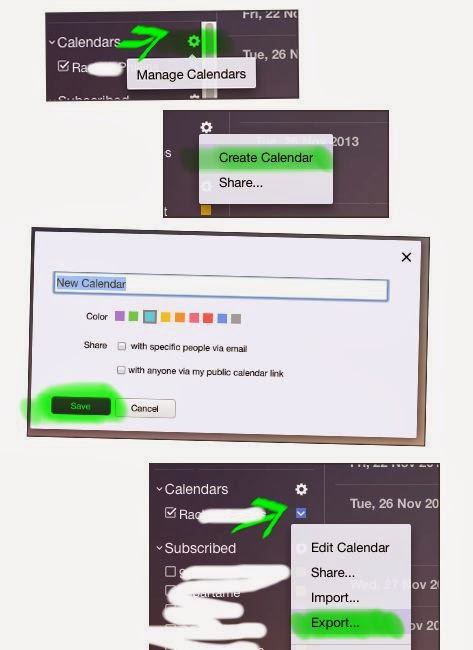
If you wish to backup your calendar to your pc or import to another calendar system these are the steps. It should be compatible with google calendar, and thunderbird:
at calendar.yahoo.com
on left side next to calendar click on the gear button
create calendar
enter name, then save
click on down arrow next to the calendar name, then select export
Sunday, May 19, 2013
Shrink Firefox files:
By using sqlite3, you can manage your places.sqlite file.
Note LOGINNAME is your windows login name
and PROFILENAME is the profile you wish to edit. But first zip or copy the profile folder incase you wish to revert backto
save to a batch file then create a shortcut to run again:
sqlite3 "C:\Documents and Settings\LOGINNAME\Application Data\Mozilla\Firefox\Profiles\PROFILENAME.default\places.sqlite" "delete from moz_places where id < ( select max (id) - (select count(id)/12 from moz_places) from moz_places)"
sqlite3 "C:\Documents and Settings\LOGINNAME\Application Data\Mozilla\Firefox\Profiles\PROFILENAME.default\places.sqlite" "delete from moz_historyvisits where visit_date < ( select max (visit_date) - (select (max(visit_date) - min(visit_date))/8 from moz_historyvisits) from moz_historyvisits)"
sqlite3 "C:\Documents and Settings\LOGINNAME\Application Data\Mozilla\Firefox\Profiles\PROFILENAME.default\places.sqlite" "vacuum;"
sqlite3 "C:\Documents and Settings\LOGINNAME\Application Data\Mozilla\Firefox\Profiles\PROFILENAME.default\places.sqlite" "REINDEX;"
get sqlite3 from http://www.sqlite.org/download.html
other firefox files:
sqlite3 "C:\Documents and Settings\LOGINNAME\Application Data\Mozilla\Firefox\Profiles\PROFILENAME.default\urlclassifier3.sqlite" "delete from moz_classifier where id < (select max(id) - (select count()*0.5 from moz_classifier) from moz_classifier);"
sqlite3 "C:\Documents and Settings\LOGINNAME\Application Data\Mozilla\Firefox\Profiles\PROFILENAME.default\urlclassifier3.sqlite" "vacuum;"
sqlite3 "C:\Documents and Settings\LOGINNAME\Application Data\Mozilla\Firefox\Profiles\PROFILENAME.default\urlclassifier3.sqlite" "REINDEX;"
to experiment with more tables in the files or other files, use sqlitestudio found at http://sqlitestudio.pl/?act=about
By using sqlite3, you can manage your places.sqlite file.
Note LOGINNAME is your windows login name
and PROFILENAME is the profile you wish to edit. But first zip or copy the profile folder incase you wish to revert backto
save to a batch file then create a shortcut to run again:
sqlite3 "C:\Documents and Settings\LOGINNAME\Application Data\Mozilla\Firefox\Profiles\PROFILENAME.default\places.sqlite" "delete from moz_places where id < ( select max (id) - (select count(id)/12 from moz_places) from moz_places)"
sqlite3 "C:\Documents and Settings\LOGINNAME\Application Data\Mozilla\Firefox\Profiles\PROFILENAME.default\places.sqlite" "delete from moz_historyvisits where visit_date < ( select max (visit_date) - (select (max(visit_date) - min(visit_date))/8 from moz_historyvisits) from moz_historyvisits)"
sqlite3 "C:\Documents and Settings\LOGINNAME\Application Data\Mozilla\Firefox\Profiles\PROFILENAME.default\places.sqlite" "vacuum;"
sqlite3 "C:\Documents and Settings\LOGINNAME\Application Data\Mozilla\Firefox\Profiles\PROFILENAME.default\places.sqlite" "REINDEX;"
get sqlite3 from http://www.sqlite.org/download.html
other firefox files:
sqlite3 "C:\Documents and Settings\LOGINNAME\Application Data\Mozilla\Firefox\Profiles\PROFILENAME.default\urlclassifier3.sqlite" "delete from moz_classifier where id < (select max(id) - (select count()*0.5 from moz_classifier) from moz_classifier);"
sqlite3 "C:\Documents and Settings\LOGINNAME\Application Data\Mozilla\Firefox\Profiles\PROFILENAME.default\urlclassifier3.sqlite" "vacuum;"
sqlite3 "C:\Documents and Settings\LOGINNAME\Application Data\Mozilla\Firefox\Profiles\PROFILENAME.default\urlclassifier3.sqlite" "REINDEX;"
to experiment with more tables in the files or other files, use sqlitestudio found at http://sqlitestudio.pl/?act=about
Wednesday, July 20, 2011
Sharing contacts among your social accounts:
Flow of Contact Sharing
Comparison
Flow of Contact Sharing
| Step | 1 | 2 | 3 | 4 |
| Source--->Target (tip) | spreadsheet | ----->facebook (find friends->other->select file) | ----> spreadsheet of phone numbers that user has made public or friend access to enabled as shown on their info tab on their profile ( account-> edit friends -> contact -> copy paste each 'page' to notepad/texteditor then save -> use spreadsheet program to sort and edit and append to your existing list) | |
| ------>yahoo mail (facebook-> login fb connect) | ---->google plus (find-> login yahoomail) | |||
| ---->spreadsheet ( export yahoo csv) | ||||
| ---->gmail (import yahoo csv) | ||||
| ---->linkedin (add connections-> login yahoo mail) | ||||
| --->linkedin (connections->add connections->import desktop) | --------> spreadsheet connections-> export connections , select 'yahoo csv' | |||
| --->yahoo mail (address book: tools->import) |
Comparison
| service | export | import from email service | import by file |
| linkedin | y | y | y |
| gmail | y | y | y |
| google plus | n | y | n |
| yahoo mail | y | y | y |
| plaxio | y | y | n |
| twitter | n | y | n |
| hotmail /live /msn | y | y | |
| facebook | n | y | y |
Tuesday, February 15, 2011
Saving internet videos- Firefox, Chrome and IE
Some folks use programs to download, such as atube or vdownload. The issue is it REDOWNLOADS, which is already in cache therefore not worth the time. Additionally, they are only for youtube, and not flash that are not on youtube or mp4 on other sites.
below are the instructions for firefox, chrome and IE browsers.
Firefox:
in the address bar type about:config
click on 'list cache entries', note there maybe 3 entries (directories), the one with the most files is probably the directory to look at first
search for the file either by flv or swf or by the site (but some sites store files to an outsourced server)
click on the link file next to key
copy the file path
open explorer to that path
right click on the file and do file copy(move is locked)
rename the file and make sure to use the proper extension eg flv for flash files
Chrome:
a) use 'chrome cache viewer' program, but first must close chrome, otherwise the files are 'locked'
sort by size look for swf extension for example
right click on file
select 'save selected item'
OR
b) using 'inspect element'
on page background in browser page, right click select 'inspect element'
on page background in browser page, right click select 'inspect element'
select resources
select documents
sort by size column
double click (it will open in the browser)
however it is for only that page, so if you closed the page you need to use cache viewer
OR
c) using the cache page:
Open a new tab
In address bar, type about:cache then press enter
Search for the file by name or extension text. If youtube then search for flv or videoplayback.
The newest entry is on top and oldest is at the bottom.
Double click on the link, then an info page will open.
View the 'content-length' field and verify the size. Typically videos are 3min approx. 10 megabytes in size. Therefore look at a file 7digits at the least. 1000000 is 1mb.
Highlight the http address all the lines.
Right click then select 'go to....'
Popup to download will open if not defined in browser. For example jpg will open in browser but video file will not. When downloading video open with file browser and use your video player to view.
IE:
1) find out where the cache files are stored -
tools->general
in the browser history, click on 'settings' button
select 'view files' button
then BOOKMARK or create shortcut to this folder, for future reference
2) when viewing the directory
sort by size (videos are very large)
right click on file, select COPY(it will be locked for move)
use paste to the folder, such as to 'my documents' folder
These methods are also good to find photos and graphics that are stored in the cache. Most files will reside in cached until reboot or cleaning cache.
'free flv player' is a good flash video viewer . VLC player runs on both Windows and Mac operating systems
Tuesday, August 10, 2010
Some steps to prevent PC virus and spyware.
Nothing is worst than spending a week or more getting rid of a virus. Install an anti-virus software, such as avast. See download.cnet.com for reviews of anti-virus software before downloading, since many are fake or are spyware. It is best to read the reviews of software by users, before downloading to a PC. If there is no review on the vendor site, then do a google search. Good sites for software reviews are download.cnet.com, brothersoft.com and nonags.com .
However, the best thing to do is to prevent virus and spyware.
1) Set cookies on your browser to 'always' prompt/ask. In the beginning, the notifications are a nuisance. However, if the browser remembers your 'safe' list, there won't be a notification when revisiting the site.
When you do this, then you'll be happy that you did. Because you'll see all the sites that have placed cookies on your PC, which take up computer disk space ... another issue. Sites that set cookies are not only the 'parent site', but also all the sites where the ads banners and the graphics are hosted. A big offender is doubleclick.net
2) Set the browser to not allow pop ups, therefore you can decide which sites to display. Again most browsers will have a white-list or exceptions list, so when revisiting the site, you won't be prompted in the future.
3) Use anti-spyware scanner, since it is different from a virus. A virus does actions, such as delete files. However anti-spy will log the user activity. Not all virus software will prevent spy ware. A recommended anti-spyware is MalwareBytes Anti-Spyware.
4) Run an analysis tool like Hijack This or Old Timer Listit, which list all types of inforamation such as programs running in the background such as services, tasks (run once) and start up programs, that may be hidden. Note caution DO NOT use the autofix, rather LOOK up the issue. Do your homework first before removing any entries(esp. registry) or files. Backup the registry (file->export) and create a restore point (start ->accessories->system, system restore , you will need administrative rights for this)
Note that preventing virus and spyware is not a one time deal. Just like dentist checkups are routine, the PC also needs checkups ....
1) Run the ms update monthly, to get the latest security updates. One way to do this, is by using the internet explorer->tools->windows update . Another way is to start->run then type without quotes "wupdmgr.exe –z –q"
2) Download the virus and spyware definitions weekly, if it is not automated. Only definitions are necessary, and not software updates. The definitions are always free and are updated within the software itself.
Nothing is worst than spending a week or more getting rid of a virus. Install an anti-virus software, such as avast. See download.cnet.com for reviews of anti-virus software before downloading, since many are fake or are spyware. It is best to read the reviews of software by users, before downloading to a PC. If there is no review on the vendor site, then do a google search. Good sites for software reviews are download.cnet.com, brothersoft.com and nonags.com .
However, the best thing to do is to prevent virus and spyware.
1) Set cookies on your browser to 'always' prompt/ask. In the beginning, the notifications are a nuisance. However, if the browser remembers your 'safe' list, there won't be a notification when revisiting the site.
When you do this, then you'll be happy that you did. Because you'll see all the sites that have placed cookies on your PC, which take up computer disk space ... another issue. Sites that set cookies are not only the 'parent site', but also all the sites where the ads banners and the graphics are hosted. A big offender is doubleclick.net
2) Set the browser to not allow pop ups, therefore you can decide which sites to display. Again most browsers will have a white-list or exceptions list, so when revisiting the site, you won't be prompted in the future.
3) Use anti-spyware scanner, since it is different from a virus. A virus does actions, such as delete files. However anti-spy will log the user activity. Not all virus software will prevent spy ware. A recommended anti-spyware is MalwareBytes Anti-Spyware.
4) Run an analysis tool like Hijack This or Old Timer Listit, which list all types of inforamation such as programs running in the background such as services, tasks (run once) and start up programs, that may be hidden. Note caution DO NOT use the autofix, rather LOOK up the issue. Do your homework first before removing any entries(esp. registry) or files. Backup the registry (file->export) and create a restore point (start ->accessories->system, system restore , you will need administrative rights for this)
Note that preventing virus and spyware is not a one time deal. Just like dentist checkups are routine, the PC also needs checkups ....
1) Run the ms update monthly, to get the latest security updates. One way to do this, is by using the internet explorer->tools->windows update . Another way is to start->run then type without quotes "wupdmgr.exe –z –q"
2) Download the virus and spyware definitions weekly, if it is not automated. Only definitions are necessary, and not software updates. The definitions are always free and are updated within the software itself.
Tuesday, April 20, 2010
Recommended Weekly Cleanup Procedure
1- Update Virus Definitions. Note that this does not mean update software, but update the virus definitions. eg for some programs call these DAT files.
2- Update Anti Spyware definitions, again not the software but the spyware info.
3- Run system updates, to get security items, ignore other items for now(use custom always, since MS pushes updates for their office and live products). Note driver updates are not necessary unless issues are occurring , this should be last resort, especially if original disk to drivers is not to be found.
for Windows:
IE->tools->update
or Run->cmd, then type wuaucld.exe
or Run->cmd, services.msc , then for 'automatic updates' right click then select start
4- Clean Hard Drive
a) Clean Temp directories, in Windows use Disk cleanup, select 'my computer' then right click on 'C' drive in windows explorer, select 'properties' button, then on 'general' tab, under pie chart select 'disk cleanup'
b) For Internet files and cookies, do this by means of the web browser.
5- Clean Registry - must have admin rights
a) Backup First !!!!!!!
Run->cmd, then type 'regedit', then select File->Export, save this to c: drive and name it with date and time, so it's easy to find
b) use tool such as ccleaner or sbmav cleaner
c) if the changes are issues after reboot, just start in safe mode and start regedit(step a) and do file->import, and use the reg file from step b)
6- Run Full Virus scan, if takes long, then run in the evening when no one is using PC and won't be interrupted
7- Run Anti-spyware cleaner
Monthly
Review disk space usage, by using programs as:
tree size
tweak now-> disk usage analyzer
space sniffer
These will reveal directories that are taking up space or programs that are space hogs. However, use your discretion when deleting files in directories manually(delete button). If not sure....better to leave alone and get advice on a PC forum. Always use the uninstall programs with apps, since these will remove lingering registries settings.
1- Update Virus Definitions. Note that this does not mean update software, but update the virus definitions. eg for some programs call these DAT files.
2- Update Anti Spyware definitions, again not the software but the spyware info.
3- Run system updates, to get security items, ignore other items for now(use custom always, since MS pushes updates for their office and live products). Note driver updates are not necessary unless issues are occurring , this should be last resort, especially if original disk to drivers is not to be found.
for Windows:
IE->tools->update
or Run->cmd, then type wuaucld.exe
or Run->cmd, services.msc , then for 'automatic updates' right click then select start
4- Clean Hard Drive
a) Clean Temp directories, in Windows use Disk cleanup, select 'my computer' then right click on 'C' drive in windows explorer, select 'properties' button, then on 'general' tab, under pie chart select 'disk cleanup'
b) For Internet files and cookies, do this by means of the web browser.
5- Clean Registry - must have admin rights
a) Backup First !!!!!!!
Run->cmd, then type 'regedit', then select File->Export, save this to c: drive and name it with date and time, so it's easy to find
b) use tool such as ccleaner or sbmav cleaner
c) if the changes are issues after reboot, just start in safe mode and start regedit(step a) and do file->import, and use the reg file from step b)
6- Run Full Virus scan, if takes long, then run in the evening when no one is using PC and won't be interrupted
7- Run Anti-spyware cleaner
Monthly
Review disk space usage, by using programs as:
tree size
tweak now-> disk usage analyzer
space sniffer
These will reveal directories that are taking up space or programs that are space hogs. However, use your discretion when deleting files in directories manually(delete button). If not sure....better to leave alone and get advice on a PC forum. Always use the uninstall programs with apps, since these will remove lingering registries settings.
Wednesday, January 06, 2010
How to filter ads from websites
How to filter ads from websites by creating a blacklist. Notes on how block by url/link, click on image to see full view to read notes. A major benefit with using host file vs plugins/addons etc is that it's global for the system. Where as a plugin for a browser is only valid for that browser specifically. Rather than update all browsers, host file applies to the entire PC and all software that access the internet .
Steps in, this example of chrome cache. However all cache displays show web addresses, this will be used for the host file.

Also, a hostfile manager program allows to update the host file using GUI, but also allows to enable and disable entries (good for testing)
Additionally, tcpview by sysinternals, displays the tcp addresses along with which app it's requesting from, which is good to see which ip addresses are using your PC.
For MAC, the host file editing , shown here http://decoding.wordpress.com/2009/04/06/how-to-edit-the-hosts-file-in-mac-os-x-leopard/
Use whois xyz.com at google search, to determine if the site is actually a pest. Note that many sites use other sites to store their data to decrease their traffic so that their servers are not brought down by overload.
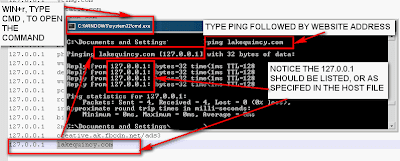
an example from browser where the ad is blocked

Another way to test is to using ping command (from Run->cmd), then type ping xyz.com where xyz.com is the address to be blocked, if 127..... appears, then it's blocked.
The issue with blocking site is when the site has multiple domains(ip addresses). To block a 'range' of ip address for example 64.233.169.x , where x is 0-255, use the route command:
route add -p 64.233.169.0 mask 255.255.255.0 127.0.0.1
To set it permanent, add this command to a dos bat file (bat), and copy to start menu-> startup
Saturday, February 21, 2009
Facebook tips:
1) to see all the applications that you have installed do the following:
on the application from bottom menu bar,
click 'edit- on the right
select 'authorized' from show drop down.
2) to display all friend's 'profile photo':
friends-> recently added
select '---' in the show dropdown
3) to see only your wall posts, without going to your profile : use the link http://www.facebook.com/wall.php likewise use 'wall to wall'
4) to see the groups that your friends have joined:
use link http://www.facebook.com/groups.php?friends
5) There is no need to RSVP to an event (for privacy..) ,
use 'remove from events' this will make the event disappear.
6) to see the updates for the fan pages that you have tagged: use http://www.facebook.com/inbox/updates.php
7) to remove an application, go to the main link it will always appear on the very bottom of the app. At the application page, use 'Remove application'
8) to preview an application's ratings/reviews, click on the highlighted name before 'allow'/accept. This will give you a chance to read what the app is before installing. Once at the application's page you can use 'go to application' and it will ask to install/accept/allow
9)organizing your friends you can categorize your friends, and this is private just as you would create email folders...
select friends-> all friends
on the left type the name of group eg: College Buddies click on the new list add your friends
* a friend can appear in more than one list
* a list can be used when sending a facebook mail
* it can be used for many applications when sending an invite- via 'filter'
* it can be used when sending a group invite
* it can be used for privacy settings. Create one for lesser known folks, such as those for facebook games only....
10) setting privacy :
from right side main blue bar,
click settings -> privacy
select profile tab use both the basic and contact tabs.
click on the dropdown ,
select 'customize' a window will appear :
select the network, friend of friends or only friends if you have friend list (see #9) defined, then you may select this as well
Saturday, January 24, 2009
Customize colors for Facebook *
this helps decrease brightness, making easy on the eyes.
Check out my facebook customized background and colors as example
 screenshot
used this style: http://userstyles.org/styles/9958
tweaked it to use this background : http://www.123backgrounds.com/freebg/10827.gif
to get pink fonts : http://userstyles.org/styles/3582
Web Browser: seamonkey - also works with firefox
** only you can view, settins are not saved on fb server/network
this helps decrease brightness, making easy on the eyes.
Check out my facebook customized background and colors as example
screenshotused this style: http://userstyles.org/styl
tweaked it to use this background : http://www.123backgrounds.
to get pink fonts : http://userstyles.org/styl
Web Browser: seamonkey - also works with firefox
** only you can view, settins are not saved on fb server/network
Speeding Up MS Windows
Note many of the commands may require Administrator rights.
1) find the culprits:
use task manager
click on processes tab
click on Mem Usage, where the largest appears first
this will tell you the programs using the most memory
Other good program(process) usage applications are 'what's running' and 'process xp'.
2 ) Remove the culprits
a) uninstall the application, using this method first (the registry entries should also be removed)
control panel -> add/remove
b)disable services(programs running in background)
start->run
type services.msc
sort by name
disable the unnecessary items , note you can enable later on
helpsrv
indexing
error reporting
switch user - this will require to use log off(back to user list), if to use a different log in.
do not disable:
event log
automatic updates (however update to 'prompt' and not automatic downloads)
c) if no uninstall application or service, then you'll need to manually remove.
find the directory where the exe is located and rename the file extenstion exe to exe_ .
If you receive write permission error, then move the directory to the desktop. If after reboot computer works fine, then delete the entire directory.
d) Remove printers that you know you (and household) will never use. Many times 'virtual printers' are added by software such as 'Ms Office One Note', and 'XPS printer'. These printers take up processing memory when the PC loads. To remove these, use Start->control Panel , select Printers. Right click on the printer, and select delete.
3) weekly tasks that should be done
a) update your virus definitions (not the application updates) the 'virus database'
b0run 'full scan' overnight
c)remove files from:
c:\windows\installer - I remove stuff that is more than 6 months old
c:\Document and Settings\_login_name\LocalSettings\Temp , where _login_name is your login name
c:\Document and Settings\_login_name\LocalSettings\TemporaryInternetFiles
4) If these don't help, then create a new login. You can then copy your My Documents from the old login to your new account(but copy to a external usb key or harddrive).
c:\Document and Settings\_old_name\ , where _old_name is the old login
c:\Document and Settings\_new_name\ , where _new_name is the new login
Note that many of the settings will not be the same, and applications will behave as a new install .
5 ) Don't make the entire household use the same login. Instead, have an admin login for yourself and non-admin for other users.
Admin logins give too many rights... installing applications etc.
Note many of the commands may require Administrator rights.
1) find the culprits:
use task manager
click on processes tab
click on Mem Usage, where the largest appears first
this will tell you the programs using the most memory
Other good program(process) usage applications are 'what's running' and 'process xp'.
2 ) Remove the culprits
a) uninstall the application, using this method first (the registry entries should also be removed)
control panel -> add/remove
b)disable services(programs running in background)
start->run
type services.msc
sort by name
disable the unnecessary items , note you can enable later on
helpsrv
indexing
error reporting
switch user - this will require to use log off(back to user list), if to use a different log in.
do not disable:
event log
automatic updates (however update to 'prompt' and not automatic downloads)
c) if no uninstall application or service, then you'll need to manually remove.
find the directory where the exe is located and rename the file extenstion exe to exe_ .
If you receive write permission error, then move the directory to the desktop. If after reboot computer works fine, then delete the entire directory.
d) Remove printers that you know you (and household) will never use. Many times 'virtual printers' are added by software such as 'Ms Office One Note', and 'XPS printer'. These printers take up processing memory when the PC loads. To remove these, use Start->control Panel , select Printers. Right click on the printer, and select delete.
3) weekly tasks that should be done
a) update your virus definitions (not the application updates) the 'virus database'
b0run 'full scan' overnight
c)remove files from:
c:\windows\installer - I remove stuff that is more than 6 months old
c:\Document and Settings\_login_name
c:\Document and Settings\_login_name
4) If these don't help, then create a new login. You can then copy your My Documents from the old login to your new account(but copy to a external usb key or harddrive).
c:\Document and Settings\_old_name
c:\Document and Settings\_new_name
Note that many of the settings will not be the same, and applications will behave as a new install .
5 ) Don't make the entire household use the same login. Instead, have an admin login for yourself and non-admin for other users.
Admin logins give too many rights... installing applications etc.
Sunday, March 30, 2008
My favorite software list
My favorite software list:
PDF - PDF Creator
http://sourceforge.net/projects/pdfcreator/
Anti Virus- Avast
http://www.avast.com/en-eu/free-antivirus-download
Spyware - Malwares Bytes Anti-Malware
http://www.malwarebytes.org/
Root kit(TSR) revealers- Hijack This
http://free.antivirus.com/hijackthis/
Firewall - comodo firewall
http://www.comodo.com/home/internet-security/firewall.php
Web Browser - google chrome
www.google.com/chrome
Ipod- iTunes
http://www.apple.com/itunes/
Media Player - winamp
http://www.winamp.com/
Graphics- Gimp
http://www.gimp.org/
Office - LibreOffice, fork of Oracle Open Office (fomerly sun open office)
http://www.libreoffice.org/
IM- Digsby
http://www.digsby.com/
Screen Capture - fast stone capture
www.faststone.org
Process Monitor-killer - Proc Explorer
http://technet.microsoft.com/en-us/sysinternals/bb896653.aspx
Text Editor - total edit
http://www.codertools.com/totaledit.aspx
FTP- File Zilla
http://filezilla-project.org/
Email- eprompter
http://www.eprompter.com/
Telnet- Kevterm
http://www.geocities.com/SiliconValley/Network/1027/
System Cleaner - CCleaner
http://www.ccleaner.com/
Zip - 7zip
http://www.7-zip.org/
Disk Usage - Treesize
http://www.jam-software.com/freeware/index.shtml
Program Launcher - executor
http://executor.dk/
System Dock - tclock
http://www.coolwintools.com/freeware.php3
Widgets - rainmeter
http://www.ipi.fi/%7Erainy/legacy.html
widgets clocks: samurize
www.samurize.com
Saturday, March 15, 2008
Desktop Widgets
Stuff for the desktop:
podxp : pro: includes photo slide show, calendar, media player, rss , clock
con: can't add new widgets - project is closed
samurize: pro: includes calendar, media player, rss, webpage, clock
downloads available
con: requires lots of customization.
yahoo widgets: pro: newly added widgets daily , many to choose from
con: computer memory hog
google desktop: two thums down cons: memory hog, installs other software, automatically changes computer settings like indexing files...
podxp : pro: includes photo slide show, calendar, media player, rss , clock
con: can't add new widgets - project is closed
samurize: pro: includes calendar, media player, rss, webpage, clock
downloads available
con: requires lots of customization.
yahoo widgets: pro: newly added widgets daily , many to choose from
con: computer memory hog
google desktop: two thums down cons: memory hog, installs other software, automatically changes computer settings like indexing files...
Social Networks worth joining.
Social Networks worth joining:
myspace.com
pro: many users
con: no email alerts, when friend is added not notified
requires lots of customization to make it look nice.
facebook.com
pro: alerts of messages, friends etc
fun applications - send virtual gifts, greeting cards and games
con: ask to add friends when adding app.
bebo.com
pro: easy to use
con: not many people on yet
mashable.com
pro: easy to use
con: not many people still in beta, and need invites to join....
myspace.com
pro: many users
con: no email alerts, when friend is added not notified
requires lots of customization to make it look nice.
facebook.com
pro: alerts of messages, friends etc
fun applications - send virtual gifts, greeting cards and games
con: ask to add friends when adding app.
bebo.com
pro: easy to use
con: not many people on yet
mashable.com
pro: easy to use
con: not many people still in beta, and need invites to join....
new stuff
To find new stuff or betas check out:
yahoo: next.yahoo.com
google: labs.google.com
msn: ideas.live.com
yahoo: next.yahoo.com
google: labs.google.com
msn: ideas.live.com
customized pages
I love these pages in this order . You can add gadgets/widgets and rss feeds:
igoogle
my.yahoo.com
pageflakes.com
netvibe.com
webwag.com
mymsn.com
myaol.com
igoogle
my.yahoo.com
pageflakes.com
netvibe.com
webwag.com
mymsn.com
myaol.com
Subscribe to:
Posts (Atom)

